What you need
- Windows
- Windows 10 or 11, 64-bit, any x64 processor. No extra packages. A DAW that loads VST3 or CLAP.
- macOS (beta)
- macOS 11 Big Sur or later, Apple silicon or Intel (universal). AU, VST3 and CLAP: Logic Pro included.
- Internet
- To download, to start a trial and to activate. A studio computer that stays offline can be activated with a file.
- Account
- Not needed to install or for the trial. Buying uses a ZOKKU account.
Install on Windows
- On the Download page get the ZOKKU Hub Setup. The files are not code-signed yet, so the browser may warn you: in Edge, the three dots on the download, Keep, Show more, Keep anyway; in Chrome, Keep.
- Run the Setup. Windows SmartScreen may say Windows protected your PC because the app is new and not signed: choose More info, then Run anyway. The Hub Setup installs for your Windows user and asks for no administrator rights.
- Open ZOKKU Hub from the Start menu, pick the plugins and the formats (VST3, CLAP or both) and press Install. Windows asks once for permission, because the plugin folders are shared by every user. Close your DAW first.
- Open your DAW and rescan plugins (see rescan, DAW by DAW).
The plugins go to C:\Program Files\Common Files\VST3 and C:\Program Files\Common Files\CLAP, the folders every DAW reads. Optional check: the SHA-256 of each file is under File details on the Download page; in PowerShell, Get-FileHash .\file.exe must show the same value. The Hub checks every installer by itself.
Without the Hub
Unzip the plugins installer from the Download page and double-click ZOKKU Plugins Setup.cmd; accept the same warnings and the one Windows prompt. It keeps a copy of anything it replaces. The plugins never need the Hub to run.
Install on macOS
- Download the Mac disk image from the Download page and open it.
- The installer and the Hub are not notarized by Apple yet, so the first time Gatekeeper blocks them. Open System Settings, Privacy & Security, scroll to the message about the blocked app and choose Open Anyway, then confirm with your Mac password.
- Install the plugins from the Hub or the package. Each install asks for your Mac password. AU goes to
/Library/Audio/Plug-Ins/Components, VST3 and CLAP to the folders beside it. - Open your DAW. Logic Pro validates new Audio Units at its next start (see AU validation).
To check the disk image: shasum -a 256 in Terminal, compared with the SHA-256 on the Download page.
Start the free trial
Every plugin can be tried free for 7 days, with every feature, no card and no account.
- In the Hub, choose Start free trial on a plugin; or, inside a plugin, open the licence sheet from the chip in the top bar.
- The trial is the ZOKKU All one: one trial unlocks all eleven plugins on that computer. The chip shows the days left.
- When it ends, a banner in the plugin says so: instruments go silent, effects pass your sound through unchanged. Nothing is deleted and your sessions are safe.
Buy and activate online
Buy on the plugin's page or on Bundles. The licence goes to your ZOKKU account, with your downloads.
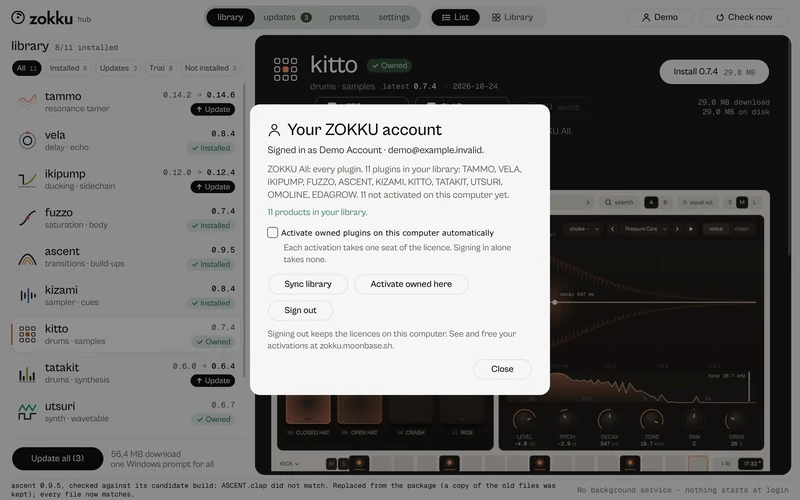
- In the Hub, Sign in with the account email. What you own shows as Owned and activates on this computer as it installs (you can turn that off in the account sheet).
- Or, in the Hub or in a plugin's licence sheet, Activate online: your browser opens to sign in and the plugin unlocks on this computer.
- One activation works for the plugin and the Hub alike. ZOKKU All unlocks all eleven with one activation.
On a Mac, use Sign in in the Hub for now: ZOKKU All and the trial work on a Mac today; a single-plugin or Beat Kit licence activates on a Mac from the next Mac update.
Activate a computer without internet
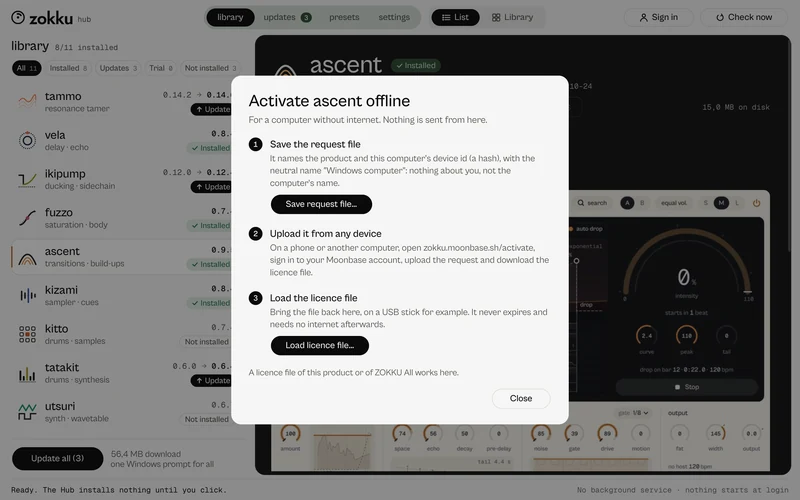
- In the Hub (or the plugin's licence sheet) choose Activate offline: it saves a small request file. The request holds the product, the Hub version and a random number, nothing personal.
- Take the file to any device with a browser, open your ZOKKU account, and upload it on the activation page. You get a licence file back.
- Bring the licence file to the studio computer and load it in the Hub. The plugin is activated.
Your ZOKKU account
An account keeps what you buy. Create one on the account page (name, email, a password of at least 8 characters), then open the confirmation link we email you before the first sign-in. If sign-in says Confirm your email first, see email not confirmed.
Signed in, the account page lists your library, trials and downloads; the Hub shows Owned on what you have. Sign out of the Hub and the licences stay on the computer. The Hub never keeps your password.
Updates
The Hub shows the version you have and the latest one on each row (for example 0.14.2 → 0.14.3). Update all says how many plugins and megabytes before you press it; on Windows one permission prompt covers every update, on a Mac one password. Close your DAW first.
Before every update the Hub keeps a copy of what you had, so you can go back to an earlier version without a download. Saved sessions keep their sound after any update. Plugins that had another name (RESONANCE, PULSE…) are replaced and old projects still open them.
Uninstall
Windows: in the Hub, Uninstall on each plugin (a copy is kept so you can restore it). The Hub itself: Settings, Apps, Installed apps, ZOKKU Hub, Uninstall. Plugins installed without the Hub appear as ZOKKU Plugins in the same list. Removing the Hub leaves the plugins installed; your presets stay.
macOS: uninstall from the Hub; the plugins are moved to a ZOKKU folder in /Library/Application Support, never deleted.
Common to every plugin
Three window sizes
Essential (640 × 400) with the main controls, Studio (1000 × 640) and Full (1280 × 800). Pick one with S, M, L in the top bar or drag the corner. A click on the status line zooms the contents (75, 90, 100, 115, 130, 150, 175, 200 %), remembered for each plugin.
Simple and advanced
simple / advanced sits in the footer. advanced opens a drawer with tabs over the lower part of the window, while the display stays visible; Esc, close or simple closes it. The plugin remembers the view and the tab in its editor settings, never in your project. The help strip next to it describes the control under the pointer.
The preset sheet
A click on the preset capsule opens the sheet: search, categories with counts, ★ Favourites, tags, and in B to load a preset into the other slot. Every word you type must appear in the name, category or description. Your own presets are saved in your Documents folder, in a FORMA folder named after the plugin's old name, so they stay where they were.
A/B, equal vol. and undo
A and B hold two complete settings; equal vol. plays B at the loudness of A. Undo and redo (Ctrl+Z, Ctrl+Shift+Z or Ctrl+Y) are separate for A and B; one gesture is one step.
Keyboard and typed values
A click never takes the keyboard, so the space bar stays with your DAW. Press Tab to work a plugin from the keyboard: arrows 1 % (Shift 0.1 %), Page Up/Down 10 %, Home/End, Delete for the default, Enter to type a value. Values accept units: 6k3 or 6.3 kHz = 6300 Hz, 250ms, 1.2s, -3 dB, 40 %, comma or point.
The status line
Latency, CPU and zoom. Right-click for Copy settings and Paste settings (between instances of the same plugin, even across projects), the zoom, MIDI learn… (plugins with MIDI input), GPU rendering (OpenGL) and Direct2D drawing: leave the last two as they are unless you see drawing problems.
MIDI learn
In kizami, kitto, tatakit, ikipump, ascent, utsuri and edagrow: right-click the status line, MIDI learn…, search the parameter, press learn and move a control on your controller. Right-click a row to forget it. Mappings are saved with the project. Effects without MIDI input use your DAW's controller mapping: every parameter can be automated.
ZOKKU Link
Carries the kick from one plugin to another on one of 16 channels, from any track of the same project, with no mixer routing. ikipump (Send / Kick), kitto and tatakit send; ikipump in Link mode and vela with duck from IKIPUMP receive. It works between plugins the host runs in the same process.